
How to Use ytrank: A Complete Walkthrough of Every Tool
ytrank is a free toolbox built around the questions every creator keeps asking: where do my videos rank, why did my views change, which keyword should I target, and what are my competitors doing? This guide walks through the whole site tool by tool — from creating an account to setting up e-mail alerts — so you can build a complete measurement routine in one sitting.
Before you start: create your free account
Everything on ytrank lives in one panel. Click Sign Up, enter your e-mail and a password, and confirm the verification code that arrives in your inbox — no credit card, no trial countdown. The panel is available in six languages (English, Turkish, German, Spanish, Portuguese and Chinese); you can switch language and time zone any time under Settings.
Every tool described below is included in the free account. Usage is metered by a fair-use daily quota explained at the end of this guide — for a normal channel doing normal tracking, you will rarely think about it.
Step 1 — Track where your videos rank
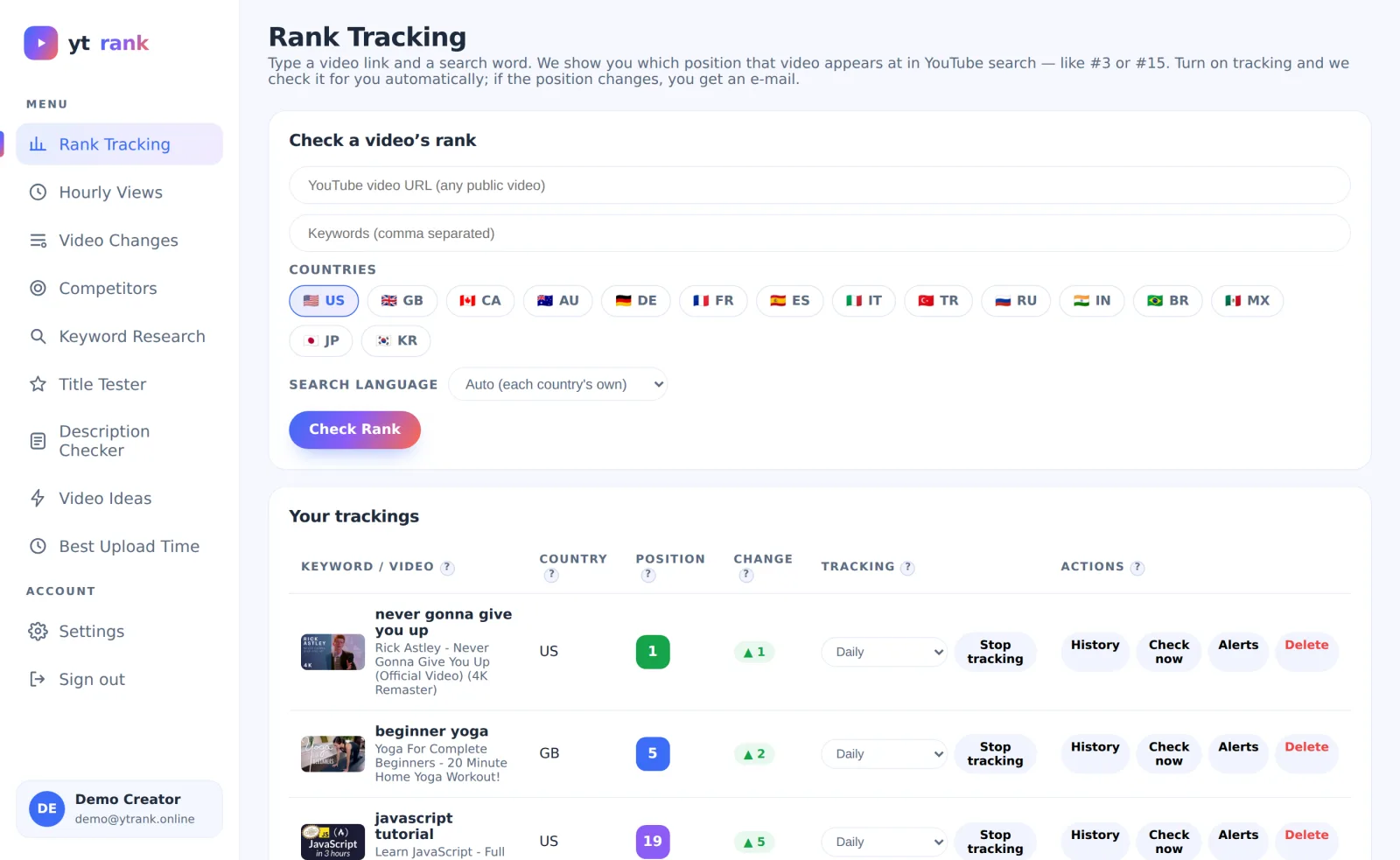
Open the Rank Tracking tab. Paste the link of any public video, type the search phrases you want to rank for (the words a viewer would actually type), and pick one or more countries. Then choose how often ytrank should check: every 2, 6 or 12 hours, daily, every 2 days — or just once. Each check queries YouTube search neutrally, without personalization, and records your exact position in the top 50; deeper than that is shown as "50+".
From the second check onward the history starts paying off: position boxes show ▲/▼ movement, the chart draws your trajectory with #1 at the top, and green IN / red OUT markers flag the moments your video entered or left the first page. A "Check now" button runs an immediate re-check whenever you have just changed a title and cannot wait.
Step 2 — Watch views hour by hour
The Hourly Views tab archives any public video — yours, or one you are studying. Every hour ytrank snapshots views, likes and comments and computes the difference, which turns the flat "total views" number into an hourly curve: you see exactly which hours your audience watches, and the 7×24 heatmap reveals the weekly rhythm at a glance. Range buttons switch between the first 48 hours, the last day, week, month or 90 days.
Two details worth knowing: the ⚡ Pulse button raises the resolution to 5-minute snapshots for 24 hours — made for launch days — and hourly detail is kept for 90 days, after which it is condensed into daily summaries so long-term trends never disappear.
Step 3 — Research a keyword before you film
The Keyword Research tab answers the question that should come before the camera turns on: is this phrase worth targeting? Type a keyword, select countries, and ytrank scores each market 0–100 on Demand (are people searching this?), Competition (how strong are the videos currently ranking?) and the combined Opportunity score, with a plain-language verdict.
The country comparison is the part most creators underuse. The same keyword can be saturated in the US and wide open in Germany or Brazil — if your content travels (English audio, subtitles), checking three or four markets often finds you a first page you can actually reach.
Step 4 — Test the packaging: title and description
Title Tester lets you test a title before the video exists on YouTube. Enter the title and the keyword it targets, and you get a title score — length, keyword position, readability patterns — combined with the market opportunity for that keyword, plus a concrete list of fixes. Test three versions, keep the attempts table open, and pick the winner with numbers instead of gut feeling.
Description Checker does the same for the description: paste your draft text (free, costs no quota) or a published video link, and it scores 0–100 across visibility, keyword use, structure and engagement. The preview highlights the first 150 characters — the only part YouTube shows in search results — so you immediately see whether your keyword and promise fit inside it.
Step 5 — Keep an eye on competitors and silent edits
The Competitors tab tracks any channel by link or @handle. Daily (or every 2 days) it records subscribers, total views and video count, refreshes the channel's Top 10 most-viewed list once a day, and can e-mail you on new uploads, subscriber milestones or Top 10 changes. Watching which videos hold a competitor's top spots for months tells you what their catalogue really stands on.
Video Changes goes one level deeper: it monitors the title, description, tags and thumbnail of individual videos and archives every version with before/after diffs. Big channels quietly A/B test their packaging after publishing — this tab is how you catch those silent edits, on their videos or on your own team's.
Step 6 — Find ideas and the right moment to publish
Video Ideas starts from a seed keyword and generates a free candidate list from real search suggestions and the titles currently ranking — phrases people demonstrably type. Select the promising ones (up to 20) for full analysis and each gets demand, competition and a gap score; candidates marked ⭐ combine real demand with a beatable first page.
Best Upload Time answers the eternal "when should I post?" question from your own data instead of generic folklore. Once your hourly archive has collected about a week of data, it computes an hour-by-day activity matrix of your audience and names the best two-hour windows, each with a confidence level that grows as your archive does. It costs nothing to run.
Let the alerts do the watching
Every tracking tool has a 🔔 alert button, and this is what turns ytrank from a dashboard into an assistant. Rank alerts fire on position thresholds, direction, or first-page entry and exit; hourly-view alerts on view-speed spikes and milestones; competitor alerts on parameter jumps and new uploads; video-change alerts on exactly the elements you choose. Each rule accepts a custom message template, and repeated alerts are throttled so a volatile keyword cannot flood your inbox.
A practical starting setup takes five minutes: a threshold alert on each of your main keywords (set it at your current position — any drop notifies you), plus a new-video alert on two or three competitors. From that moment the site works in the background and only speaks when something actually happened.
Quotas, fair use and your own API key
Every live check spends units from a daily allowance, because ytrank reads YouTube's official Data API. Search-based operations are the expensive ones — one rank scan or one keyword-country analysis costs roughly 100 units — while statistics reads cost 1. The Settings tab shows exactly where your units went today, operation by operation, so the meter is never a mystery.
If you outgrow the shared allowance, add your own free Google API key under Settings: Google grants every account 10,000 units per day, ytrank validates the key live and uses it before touching the shared pool, and your key is stored encrypted. Allowances reset at midnight Pacific time, the same clock YouTube itself uses.
A weekly routine that takes 15 minutes
Here is how the tools combine into a rhythm that fits a creator's week. Always on: rank tracking and hourly archiving for your active videos, with alerts armed. Before every video: ten minutes across Keyword Research, Title Tester and Description Checker — cheap insurance on hours of production work. Weekly: skim your competitors' week and check Best Upload Time before scheduling. Monthly: one Video Ideas session to refill the topic list.
The real payoff compounds: after a few weeks you own a dataset about your channel that no generic advice can match — which title changes moved rankings, which hours your audience truly watches, which keywords were winnable. That is the entire idea of ytrank: replace folklore with your own numbers, for free.